
To unhide cells in Excel or LibreOffice Calc, first check whether you are dealing with hidden rows, hidden columns, hidden sheets, or cell content made invisible by formatting. Microsoft explains that hidden rows and columns can be restored by selecting the surrounding rows or columns and using the Unhide command [source: Microsoft]. That same idea works in LibreOffice Calc, though the menus and right click behavior are slightly different.
TLDR: In Microsoft Excel, select the rows or columns around the hidden area, right click, and choose Unhide. In LibreOffice Calc, select the surrounding rows or columns, right click, and choose Show Rows or Show Columns. For example, if rows 8 to 12 are hidden in a 500 row sales report, select rows 7 and 13, then unhide them. In a finance team reviewing 12 monthly tabs, even one hidden column can cause a 5% variance review to take much longer than it should.
What “hidden cells” usually means
People often say “hidden cells,” but spreadsheet apps usually hide rows, columns, or sheets. A single cell is rarely hidden on its own. It may only look hidden because the font color matches the fill color, the column is too narrow, or the sheet is protected.
This matters. If you use the wrong fix, nothing changes. It drives me crazy that a hidden column can look like a normal gap, especially when column letters jump from D to H and you are expected to notice it at 4:55 p.m.
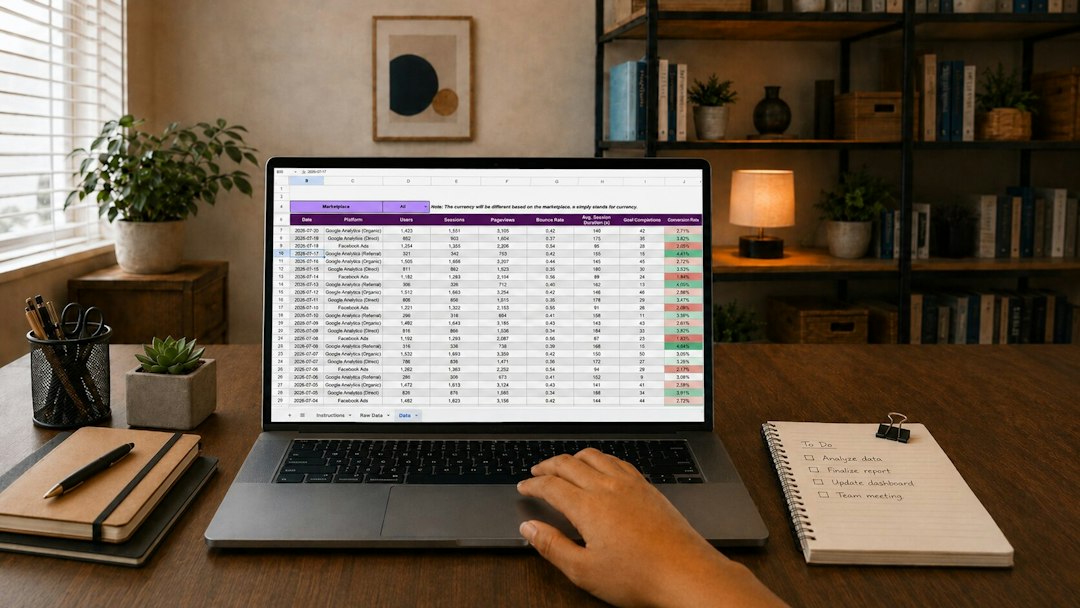
How to unhide rows and columns in Microsoft Excel
Excel is the cleaner option for most office users. The commands are easy to find, and the shortcuts are familiar if your team already works in Microsoft 365 or Office 2024.
To unhide rows in Excel:
- Select the row above and the row below the hidden area.
- Right click the selected row numbers.
- Choose Unhide.
To unhide columns in Excel:
- Select the column before and after the hidden area.
- Right click the selected column letters.
- Choose Unhide.
You can also use the ribbon. Select the sheet, go to Home, then Format, then Hide & Unhide. From there, pick rows, columns, or sheets.
If the first row or first column is hidden, use the name box near the formula bar. Type A1, press Enter, then use Home > Format > Hide & Unhide. This is easy to forget. Expect to waste a few seconds if you try to drag the edge with your mouse instead.
How to unhide rows and columns in LibreOffice Calc
LibreOffice Calc handles hidden rows and columns well, but the wording is different. It uses Show Rows and Show Columns instead of a simple Unhide command in some menus.
To show hidden rows in Calc:
- Select the row above and the row below the hidden rows.
- Right click the row headers.
- Choose Show Rows.
To show hidden columns in Calc:
- Select the column before and after the hidden columns.
- Right click the column headers.
- Choose Show Columns.
You can also use the top menu. Select the affected area, then go to Format > Rows > Show or Format > Columns > Show.
The catch is that Calc can feel less polished when files come from Excel. Hidden columns may survive the file transfer, but filters, frozen panes, and protected ranges can make the issue feel messier than it is.
Image not found in postmetaHow to unhide sheets
Hidden sheets are common in reports. People hide raw data, lookup tables, or old calculations. That is fine, until someone audits the workbook and cannot find the numbers behind the summary.
In Excel: right click any sheet tab, choose Unhide, select the sheet, and click OK.
In LibreOffice Calc: right click a sheet tab and choose Show Sheet, then pick the sheet you want to restore.
If the workbook or spreadsheet is protected, you may need the password. Neither Excel nor Calc should be treated as a secure database just because a sheet is hidden. Hiding is for layout and convenience. It is not strong protection.
Excel vs Calc for spreadsheet management
Excel wins on speed and polish. If your team works with large workbooks, pivot tables, charts, or shared files, Excel usually feels smoother. The right click menus are direct. The ribbon also helps less technical users find the same command twice.
LibreOffice Calc wins on cost and openness. It is free, open source, and good enough for many small teams. It also opens Excel files, which helps when you receive spreadsheets from clients. Still, some formatting may shift. Macros are another weak spot. If your workbook depends on VBA, test it before trusting the result.
If you are comparing office apps for wider use, this productivity suite comparison gives helpful context beyond spreadsheets.
Quick checks when unhide does not work
- Check filters. Rows may be filtered out, not hidden.
- Check row height. A row height of 0 acts like a hidden row.
- Check column width. A very narrow column can look missing.
- Check protection. Protected sheets may block changes.
- Check grouping. Outline groups can collapse rows or columns.
- Check formatting. White text on a white background looks blank.
Best practice for serious spreadsheet work
Use hidden rows and columns sparingly. Add a note if you hide source data. Keep a plain “Read Me” sheet in complex workbooks. Name sheets clearly. If data feeds a chart or summary, do not bury it without a reason.
For business files, Excel is usually the safer choice when accuracy, sharing, and compatibility matter. Calc is a solid choice when budgets are tight and the spreadsheet is simple. In both tools, the rule is the same: select what surrounds the missing area, right click, and show it again.