

Recurring work is the quiet engine of every team. Weekly status updates, monthly reports, quarterly reviews, daily checklists, client follow-ups, invoice reminders, content calendars, maintenance tasks, and approval routines all need to happen on schedule. The challenge is not knowing that these tasks matter; it is making sure they appear at the right time, land in the right person’s queue, and move through the right workflow without constant manual setup. That is where recurring tasks in monday.com become genuinely useful.
TLDR: monday.com makes it possible to automate recurring workflows by combining boards, templates, due dates, automations, and integrations. You can create repeatable tasks for daily, weekly, monthly, or custom schedules, then assign owners, trigger notifications, and update statuses automatically. The key is to design the workflow first, then automate the repeated steps so your team spends less time managing work and more time completing it.
Why Recurring Tasks Matter in monday.com
Every organization has work that repeats. Some of it is obvious, like weekly team meetings or monthly payroll checks. Some of it is less visible, like sending a follow-up email three days after a proposal, reviewing a support ticket backlog every Friday, or checking campaign performance every Monday morning.
When these tasks are handled manually, a few common problems appear:
- Tasks are forgotten because someone has to remember to recreate them.
- Deadlines slip because recurring work is not visible early enough.
- Managers spend too much time chasing updates instead of reviewing outcomes.
- Different people follow different processes, which creates inconsistency.
- Teams lose context because each repeat task is created from scratch.
monday.com helps solve these problems by turning recurring work into structured, repeatable workflows. Instead of relying on memory, calendar reminders, or scattered spreadsheets, you can build a system that creates, assigns, updates, and tracks tasks automatically.

What Is a Recurring Task in monday.com?
A recurring task in monday.com is any item, reminder, or workflow action that repeats on a schedule. In practical terms, it might be a task that appears every Monday, a checklist that resets at the start of each month, or a notification that reminds a team member to complete a recurring responsibility.
Depending on your setup, recurring tasks can be simple or advanced. A simple example is: “Every Friday, create an item called Weekly Sales Report and assign it to Alex.” A more advanced example might be: “On the first business day of every month, create a new client reporting task, assign subtasks to the marketing team, notify the account manager, set a due date five days later, and move the item through approval stages.”
The power of monday.com is that you can start small and expand your automation as your process becomes clearer.
Common Use Cases for Recurring Workflows
Recurring task automation is useful across departments. Here are some practical examples:
- Marketing: Weekly content planning, campaign reporting, social media publishing checklists, SEO audits.
- Sales: Pipeline reviews, prospect follow-ups, renewal reminders, monthly quota tracking.
- Operations: Inventory checks, maintenance schedules, compliance reviews, vendor follow-ups.
- HR: Onboarding tasks, performance review cycles, policy acknowledgment reminders, payroll preparation.
- Finance: Invoice processing, expense reviews, budget updates, recurring payment checks.
- Customer success: Client health checks, onboarding milestones, quarterly business reviews, feedback surveys.
In each case, the goal is the same: reduce repetitive admin work while keeping accountability visible.
How monday.com Automations Work
Automations in monday.com are built around simple recipes. A recipe usually follows this logic: when something happens, do something else. For example:
- When a date arrives, notify someone.
- Every Monday, create an item.
- When a status changes to Done, move the item to another group.
- When an item is created, assign a person.
- When a due date passes and status is not Done, alert the manager.
This logic is easy to understand, but it can become very powerful when several automations work together. For recurring tasks, you will often combine scheduled item creation, automatic assignment, due date rules, notifications, and status updates.
Step 1: Map the Workflow Before You Automate
Before building automations, take a few minutes to define the recurring workflow. This step prevents messy boards and unnecessary alerts later.
Ask these questions:
- What task needs to repeat?
- How often should it repeat? Daily, weekly, monthly, quarterly, or annually?
- Who owns the task?
- What is the due date?
- Does the task require subtasks or checklist items?
- Who needs to be notified?
- What happens when the task is completed?
- What happens if the task is overdue?
For example, if you are automating a weekly marketing report, the workflow might look like this: every Monday morning, create the report task; assign it to the marketing analyst; set the due date to Wednesday; notify the marketing manager; and once the status changes to Done, move it to a completed group.
Step 2: Create a Board for Recurring Work
A clean board structure is essential. You can create a dedicated board for recurring tasks, or you can add recurring workflows to an existing project board. The right option depends on how your team works.
A dedicated recurring tasks board works well if you have many repeated responsibilities across the team. An existing project board works better if recurring tasks are closely tied to a specific project, client, or department.
Useful columns for a recurring task board include:
- Task name for the recurring item.
- Owner to show who is responsible.
- Status to track progress.
- Due date to manage deadlines.
- Priority to identify important work.
- Frequency to show whether the task is weekly, monthly, or quarterly.
- Notes or files for instructions, templates, and references.
Step 3: Use Automation Recipes to Create Recurring Items
Once your board is ready, open the automation center in monday.com and look for scheduled or recurring automation recipes. The exact wording can vary depending on your plan and monday.com updates, but the concept is usually similar: create an item on a recurring schedule.
A typical setup might be:
- Every Monday at 9:00 AM, create an item called “Weekly Project Review.”
- Every first day of the month, create an item called “Monthly Finance Reconciliation.”
- Every quarter, create an item called “Client Business Review.”
After the item is created, you can add more automations to assign it, set dates, and notify people. For example, you might create a rule that says: when an item is created in this group, assign it to Jordan and set the due date to three days from today.
Step 4: Build Templates for Repeatable Detail
Some recurring tasks are more than a single line item. A monthly report, for example, may include data collection, analysis, writing, approval, and distribution. In that case, item templates and subitems can help.
You can create a task template that includes predefined instructions, subitems, owners, or checklists. Then, when the recurring item is created, your team does not have to rebuild the process each time.
For a monthly reporting workflow, a template might include:
- Pull analytics data from the dashboard.
- Compare results to last month.
- Write summary insights.
- Attach supporting screenshots.
- Send draft to manager for approval.
- Share final report with stakeholders.
This approach is especially helpful for teams that need consistency. Instead of hoping everyone remembers the same steps, the workflow itself provides the structure.
Step 5: Add Notifications Without Creating Noise
Notifications are useful, but too many can become background noise. The goal is to send the right alert to the right person at the right moment.
Good notification examples include:
- Task created: Notify the owner when a recurring task is generated.
- Deadline approaching: Notify the owner one day before the due date.
- Task overdue: Notify the owner and manager if the due date passes.
- Approval needed: Notify a reviewer when the status changes to “Ready for Review.”
Avoid notifying everyone about everything. Instead, design notifications around action. If the alert does not help someone make a decision or complete work, it probably is not needed.
Step 6: Use Status Changes to Move Work Forward
Status columns are one of the simplest ways to trigger workflow automation. For recurring tasks, status changes can automatically move items, notify reviewers, or update progress.
For example:
- When status changes to In Progress, notify the project manager.
- When status changes to Ready for Review, assign the reviewer.
- When status changes to Done, move the item to the Completed group.
- When status changes to Blocked, notify the team lead.
This creates a workflow that responds to progress. The task does not just sit on a board; it moves through a defined process.
Step 7: Connect monday.com With Other Tools
Many recurring workflows involve tools outside monday.com. You might collect form responses, send Slack messages, create calendar events, update spreadsheets, or notify clients by email. Integrations can help connect these steps.
For example, you could:
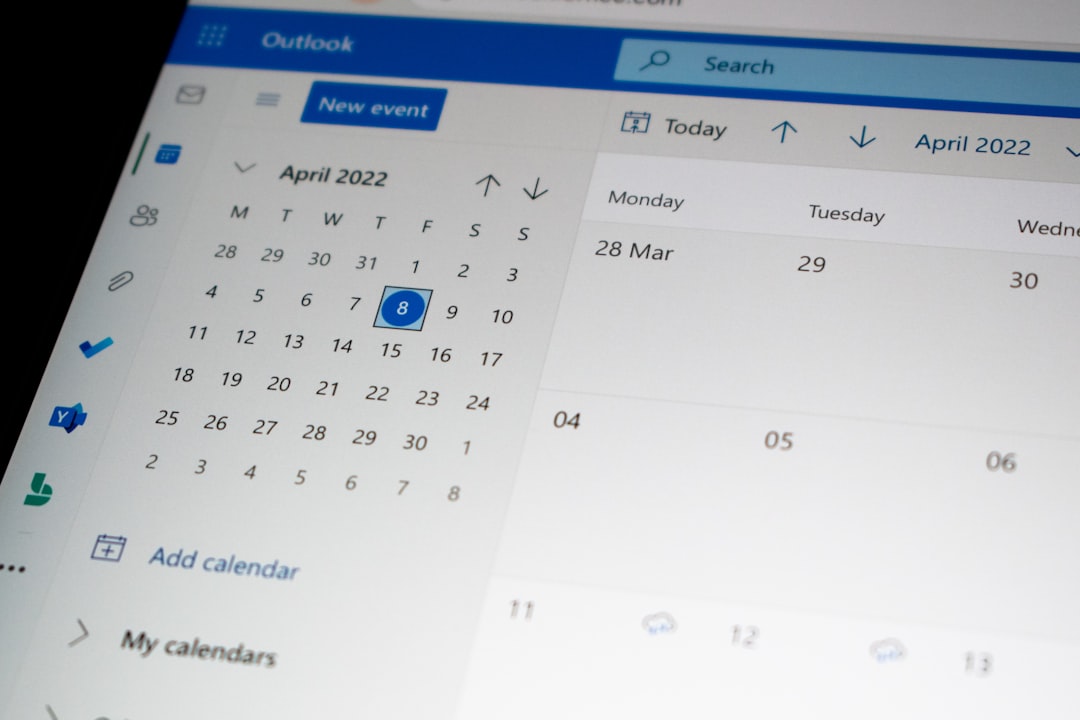
- Create a calendar event when a recurring meeting task is generated.
- Send a Slack notification when a monthly report is ready for review.
- Create a task from a form submission and place it into a recurring review process.
- Send an email reminder when a client follow-up is due.
Integrations are especially valuable when recurring work depends on communication. Instead of asking team members to check monday.com constantly, you can bring important updates into the tools they already use.
Best Practices for Recurring Task Automation
Automation should make work easier, not more confusing. Keep these best practices in mind:
- Start with one workflow. Automate a single recurring process before expanding to others.
- Use clear task names. Include the frequency or period, such as “Weekly Sales Review” or “Monthly Client Report.”
- Assign ownership. Every recurring item should have a responsible person.
- Set realistic due dates. Automating a task does not make it instantly achievable.
- Review automations regularly. Processes change, and outdated automations can create clutter.
- Document the workflow. Add instructions so new team members understand what to do.
- Use groups wisely. Separate upcoming, active, overdue, and completed work if that helps visibility.
Common Mistakes to Avoid
The most common mistake is automating too quickly. If the underlying process is unclear, automation simply repeats confusion faster. Take time to simplify the workflow before turning it into a recurring system.
Another mistake is creating too many separate boards. While boards are useful, spreading recurring tasks across too many places can make work harder to track. Try to group related recurring workflows in a way that matches how your team reviews work.
Finally, do not ignore maintenance. A recurring automation that was useful six months ago may no longer match your team structure, client contracts, or reporting needs. Schedule a quarterly review of your automations to make sure they are still helpful.
Example: Automating a Weekly Team Check-In
Imagine your team has a check-in every Monday. Instead of manually creating the agenda task each week, you can automate it.
- Create a board called “Team Operations.”
- Add a group called “Weekly Check-Ins.”
- Create an automation: every Monday at 8:00 AM, create an item called “Weekly Team Check-In.”
- Add another automation: when the item is created, assign it to the team lead.
- Set the due date to the same day.
- Add subitems for agenda collection, meeting notes, blockers, decisions, and follow-ups.
- Create a status automation: when the task is marked Done, move it to the completed group.
Now the check-in process appears automatically every week, with the same structure and the same owner. The team lead no longer has to recreate the agenda, and previous check-ins remain easy to review.
How to Know Your Automation Is Working
A successful recurring workflow should feel almost invisible. Tasks appear when they should, people know what to do, and managers can see progress without asking for constant updates.
Look for these signs:
- Fewer missed deadlines.
- Less manual task creation.
- Clearer ownership.
- More consistent processes.
- Faster handoffs between team members.
- Better visibility into recurring responsibilities.
If your automation creates confusion, too many notifications, or duplicate tasks, refine it. Automation is not a one-time setup; it is an ongoing improvement process.
Final Thoughts
Recurring tasks are a perfect place to begin with monday.com automation because the value is immediate. Every repeated task you automate gives time back to your team and reduces the risk of something falling through the cracks. Whether you are managing weekly meetings, monthly reports, client follow-ups, or operational checklists, monday.com can help turn repetitive work into a reliable system.
The best approach is to keep it practical: define the workflow, create a clean board, use recurring automation recipes, add templates, and notify only the people who need to act. With the right setup, recurring work stops being a source of stress and becomes part of a smooth, predictable rhythm that supports better productivity across the entire team.