
Use WP Htaccess Editor if you need to edit your WordPress .htaccess file without FTP or cPanel. It lets you work from the WordPress admin area, with fewer moving parts and less room for simple file access mistakes. Apache describes .htaccess files as per-directory configuration files, which is why one wrong rule can affect redirects, permalinks, caching, or access control [source: Apache].
TLDR: Install WP Htaccess Editor, open it in your WordPress dashboard, make a small change, save, and test the site right away. For example, if a 301 redirect takes 15 minutes through a hosting panel, this plugin can often cut that job to about 2 minutes. On a site with 40 old URLs, that saves real time and reduces copy-paste errors. Always keep a backup before changing rules.
Why use WP Htaccess Editor instead of FTP or cPanel?
FTP and cPanel work, but they are slow for small edits. Honestly, it feels like the old route adds five dull steps before you even touch the file. Log in. Find the file manager. Show hidden files. Download a copy. Edit. Upload. Hope nothing broke.
WP Htaccess Editor keeps the work inside WordPress. That matters when you are fixing:
- Permalink issues after a migration.
- Redirect rules for deleted or renamed pages.
- Security rules for blocking access to sensitive files.
- Cache or compression rules added by performance tools.
- WordPress rewrite rules that were removed by mistake.
The plugin is especially useful for site owners who do not want to share hosting logins with every developer or support person. It also helps teams that already live in the WordPress dashboard every day.
Before you edit anything, do this first
The .htaccess file is small, but it can break a site fast. A missing character can cause a 500 error. That is not fun at 11 p.m.
Before using WP Htaccess Editor, follow this short checklist:
- Create a fresh site backup. Use your backup plugin or host backup tool.
- Copy the current file contents into a plain text file on your computer.
- Make one change at a time. Do not paste 60 lines unless you know what each line does.
- Test the homepage, admin area, and one post after saving.
- Keep the WordPress login open in another tab while testing.
If you manage a large site, this caution matters even more. Real estate sites with hundreds of listings can have many redirects, custom post types, and cached pages. If that sounds familiar, this guide on WordPress maintenance for real estate websites pairs well with careful .htaccess work.
How to install WP Htaccess Editor
The setup is simple. You do not need file access.
- Log in to your WordPress admin area.
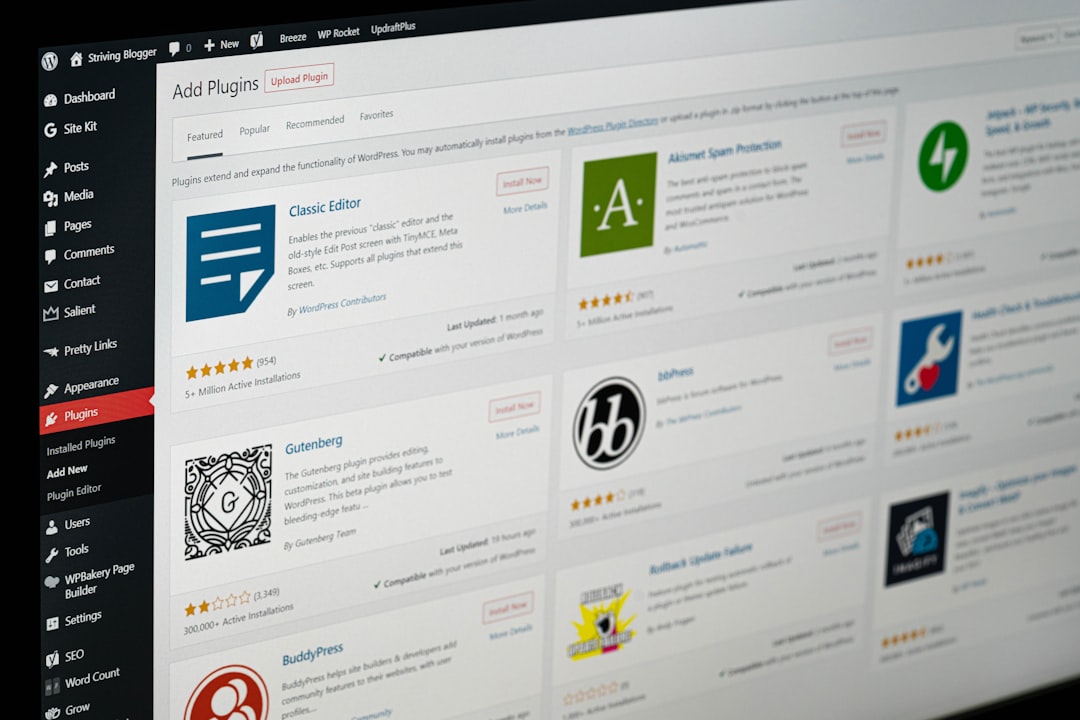
- Go to Plugins > Add New.
- Search for WP Htaccess Editor.
- Install the plugin from the official WordPress plugin directory.
- Click Activate.
After activation, find the plugin settings in the dashboard. The exact menu label may vary by version, but it is usually clear. Open the editor and review the existing .htaccess content before changing anything.
How to safely edit .htaccess in WordPress
Once inside WP Htaccess Editor, treat the file like production code. Small edits. Clear purpose. Quick testing.
Here is a basic redirect example:
Redirect 301 /old-page/ https://example.com/new-page/This sends visitors and search engines from an old URL to a new one. Place rules carefully. If you are unsure, add the rule near similar redirect rules. Do not place random code above WordPress core rewrite rules unless the instruction specifically says so.
A common WordPress block looks like this:
# BEGIN WordPress
RewriteEngine On
RewriteRule .* - [E=HTTP_AUTHORIZATION:%{HTTP:Authorization}]
RewriteBase /
RewriteRule ^index\.php$ - [L]
RewriteCond %{REQUEST_FILENAME} !-f
RewriteCond %{REQUEST_FILENAME} !-d
RewriteRule . /index.php [L]
# END WordPress
Do not delete this block unless you know how to rebuild permalinks. If permalinks stop working, go to Settings > Permalinks and click Save Changes. WordPress will often rebuild the needed rules.

Good use cases for this plugin
WP Htaccess Editor is not for every server task. It is best for focused changes that belong in .htaccess.
- Redirecting old URLs after changing page slugs.
- Fixing permalink rules after moving a site.
- Blocking access to files such as
wp-config.php. - Adding basic browser caching rules when your host supports them.
- Removing broken rules left by old plugins.
If the site is slow even after clean rules, the issue may be hosting, not .htaccess. In that case, compare server quality and support. This review of the best WordPress hosting in Latin America may help if your audience is in that region.
What not to do
Do not paste code from random forum replies without checking what it does. Some snippets are old. Some are written for a different server setup. Some block normal WordPress requests by mistake.
Avoid these risky moves:
- Do not edit while other plugins are writing rules, such as cache or security plugins.
- Do not mix Apache and Nginx rules. Nginx does not use
.htaccessin the same way. - Do not add many redirects at once without testing in batches.
- Do not remove comments if they mark plugin-controlled sections.
It drives me crazy when a plugin leaves old rules behind after removal. Still, delete them slowly. Comment them out first if you are not sure.
Testing after saving changes
After each save in WP Htaccess Editor, test the site like a visitor would.
- Open the homepage in a private browser window.
- Open one post, one page, and one category archive.
- Test the redirect you added.
- Check the WordPress admin area.
- Clear cache if your site uses a cache plugin or CDN.
If you use testimonials, sliders, or other front-end plugins, test those pages too. Rules that affect scripts or compression can break visual elements. For plugin-heavy sites, this list of WordPress quote slider plugins is a useful reminder that front-end features need testing after server rule changes.
Image not found in postmeta
Final practical advice
WP Htaccess Editor is a clean answer when you need to edit .htaccess without FTP or cPanel. It is faster, simpler, and safer than handing out hosting access for every small change.
Use it with discipline. Keep backups. Change one thing at a time. Test right away. If a rule looks confusing, wait before saving it. A two-minute check can prevent a broken site and a long support chat.