

FreeConvert is the better free pick for most people who need control over media compression, while Clideo is better when you want a cleaner, simpler workflow. Both tools can shrink large videos, images, audio clips, and documents in a browser, but they feel very different once you start tweaking settings. A one-minute 1080p video encoded at YouTube’s recommended 8 Mbps is roughly 60 MB before audio, so even short clips can become annoying to upload or email [source: YouTube Help].
TLDR: Choose FreeConvert if you want compression settings, target file sizes, codec choices, and batch flexibility. Choose Clideo if you want to upload a file, press one button, and move on without reading a settings panel. For example, a creator trying to cut a 240 MB phone video under a 100 MB upload limit will usually get there faster with FreeConvert’s target-size option. Clideo is better for quick social clips where “smaller and good enough” is the goal.
Quick comparison: Clideo vs. FreeConvert
Clideo feels like a polished media assistant. Its interface is clean, visual, and friendly. You upload a file, pick a tool, wait, download. That is the whole pitch. It works well if you do not want to think about bitrate, resolution, codecs, or compression ratios.
FreeConvert feels more technical, but in a useful way. It gives you more knobs to turn. You can often choose output format, codec, video resolution, audio bitrate, frame rate, and target file size. This extra control matters when you need to hit a strict size limit for email, Discord, a learning portal, a job application form, or a client handoff.
Where Clideo wins
Clideo’s biggest strength is simplicity. It is the tool you send to a non-technical friend who says, “My video is too big. Help.” The site groups common tasks clearly: compress video, resize video, convert video, merge clips, cut clips, add subtitles, and more.
- Best for: fast, casual compression tasks.
- Interface: clean and easy to understand.
- Learning curve: very low.
- Good use case: shrinking a short MP4 before posting it online.
Clideo also supports uploads from common sources, including local storage and cloud storage options. That is handy when your media is already sitting in Google Drive or Dropbox. You avoid the extra download-upload shuffle, which is a tiny thing until you have to do it ten times.
The downside is control. Clideo does not feel built for people who want to fine-tune every output. You can compress, convert, and edit, but it is not as satisfying when you need a very specific result. Honestly, it feels like Clideo is saying, “Trust me,” while FreeConvert is saying, “Here are the switches.”
Where FreeConvert wins
FreeConvert is stronger when file size targets matter. If a platform says your upload must be under 25 MB, 50 MB, or 100 MB, guessing compression levels gets old fast. FreeConvert’s advanced settings help because you can aim for a specific file size or adjust technical settings until the output fits.
- Best for: precise compression and format control.
- Interface: practical, but a bit busier.
- Learning curve: moderate.
- Good use case: reducing a 4K video to a smaller 1080p MP4 for upload.
FreeConvert also supports many media types. It is not only a video compressor. You can compress images, PDFs, audio files, archives, and more. That makes it useful as a general file-size fixer, not just a video tool.
The catch is that the interface can feel crowded. There are ads, buttons, file limits, queues, and settings. Expect to waste time on the first run if you are not used to compression terms. After that, it gets easier.
Compression quality: which one keeps files looking better?
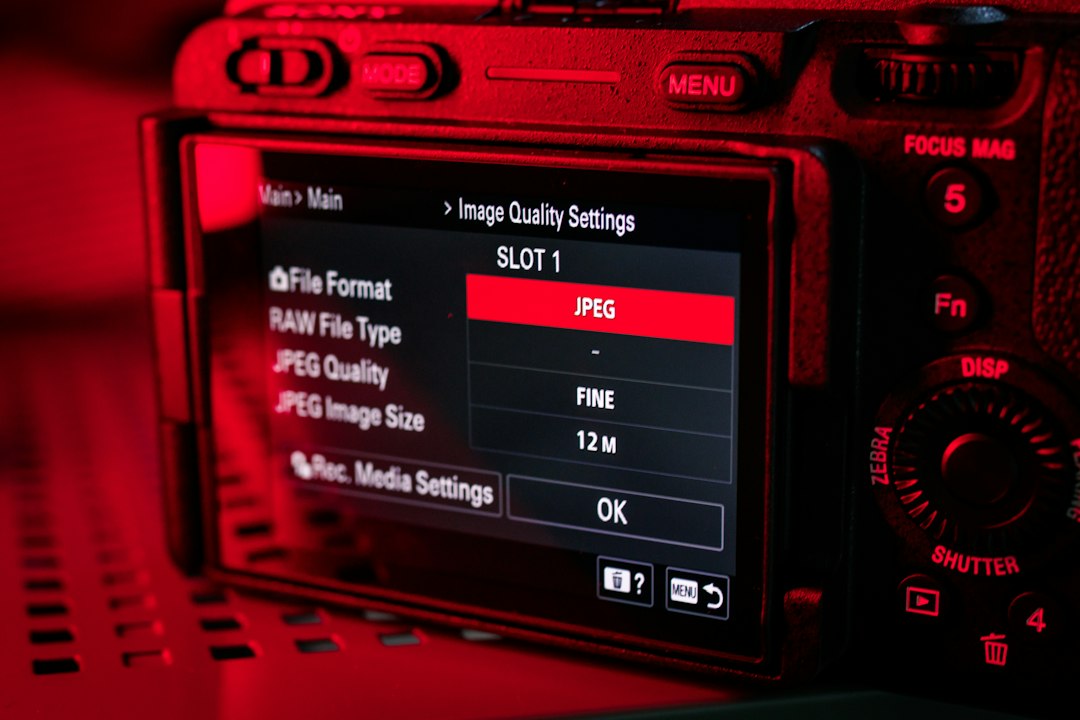
Quality depends on the source file, output format, resolution, bitrate, and how hard you compress. Neither tool can perform magic. If you crush a 500 MB video down to 20 MB, you will see artifacts, blocky shadows, softened details, or muddy motion.
FreeConvert usually gives you a better chance at balancing size and quality because it exposes more settings. For video, lowering resolution from 4K to 1080p often saves more space with less visible damage than blindly squeezing bitrate. For audio, reducing bitrate from 320 kbps to 128 kbps can make speech files much smaller while still sounding clear enough.
Clideo is better when you do not want to make those calls. It makes reasonable choices for simple jobs. That is fine for social posts, short tutorials, school clips, and quick video messages. It is less ideal when you are sending polished client work.
File limits and waiting time
Both services have free limits, and those limits can change. This is one of the annoying parts of free browser tools. You may upload a file, wait for processing, then learn that a watermark, queue, size cap, or download restriction applies.
Clideo has historically leaned toward a friendly free experience with limits around larger files and premium features. FreeConvert typically allows more technical work for free, but may place limits on file size, queue priority, number of conversions, or speed. Before uploading a huge file, check the current limit shown on the upload screen.
For small files under 100 MB, both tools are usually painless. For larger video files, FreeConvert tends to be more useful because it lets you decide how aggressive the compression should be. Clideo may be faster for a single simple clip, especially if you accept the default output.
Privacy and safety concerns
Any online compressor requires trust. You are uploading your file to someone else’s server. That may be fine for a travel video, food reel, gaming clip, or public marketing asset. It is not ideal for legal files, medical recordings, private family footage, unreleased ads, or internal company media.
If privacy matters, use offline software such as HandBrake, Shutter Encoder, or a local image compressor. Browser tools are convenient, but convenience has a cost. Read the privacy policy, check whether files are deleted after processing, and avoid uploading sensitive content just to save five minutes.
Best use cases for each tool
Use Clideo when:
- You want the simplest possible compression process.
- You are working with short videos for social media.
- You do not know or care what bitrate means.
- You prefer a modern, clean interface.
- You need quick edits as well, such as trimming or resizing.
Use FreeConvert when:
- You need to hit a strict file-size limit.
- You want batch compression options.
- You need to adjust codec, resolution, bitrate, or format.
- You compress different file types, not just videos.
- You are comfortable testing two or three settings for the best result.
Practical compression tips
Start by changing the resolution. A 4K video is often overkill for messaging, student portals, and quick previews. Dropping to 1080p can cut file size heavily while still looking sharp on most screens.
Next, reduce bitrate. This controls how much data is used per second of media. Lower bitrate means smaller files, but too low makes video look rough. For talking-head clips, you can go lower than footage with sports, gaming, or fast camera movement.
For images, resize dimensions before lowering quality too much. A 4000 px photo does not need to stay that large if it will appear in a blog post at 1200 px wide. For audio, speech can usually survive lower bitrates better than music.
Final verdict
FreeConvert is the stronger free online compression tool overall because it gives you more control and handles more specific size goals. It is better for users who need predictable results.
Clideo is the better choice for speed and ease. It is less intimidating, more polished, and easier for casual users. If you only compress media once in a while, Clideo may feel nicer.
The smart approach is simple: use Clideo for quick, low-stress compression, and use FreeConvert when the final file size really matters. That split saves time, avoids guesswork, and keeps you from fighting with settings you never needed in the first place.