
Use Firefox Private Browsing if you want clean, simple privacy controls; use Brave Private Windows if you want stronger tracker blocking by default and the extra option of Tor. Both modes erase local session traces, such as cookies and history, after you close the private window. Firefox also blocks known trackers in Private Browsing, as Mozilla explains in its support docs [source: Mozilla].
TLDR: Firefox Private Browsing is best for everyday private sessions, like checking a gift order on a shared laptop. Brave Private Windows are better if you want built-in ad and tracker blocking without installing add-ons. A normal private window does not make you invisible to your internet provider, school, employer, or the sites you visit. If you spend 20 minutes comparing flights, both browsers can clear local traces afterward, but Brave may block more page trackers during that session.
What “incognito” really means
Incognito mode is a local privacy tool. That sounds boring, but it matters. It stops your browser from saving the session to your regular history. It also clears session cookies when the private window closes.
It does not hide everything. Websites can still see your IP address. Your employer may still see traffic on a work network. Your internet provider can still know which sites you connect to unless you use extra privacy tools.
Honestly, it feels like browsers should explain this better. Too many people open a private tab and think they have become invisible. They have not.
Firefox Private Browsing: clean and easy
Firefox Private Browsing is straightforward. Open a private window, browse, close it, and Firefox clears that session’s history, cookies, and temporary site data. It also uses Enhanced Tracking Protection, which helps block many known trackers.
Firefox is a strong pick if you like control. You can adjust privacy settings without feeling trapped in a browser that makes decisions for you. You can block third-party cookies, manage permissions, and use privacy-focused extensions.
Best for:
- Shared computers at home or work.
- Shopping for gifts or surprise trips.
- Logging into a second account without mixing cookies.
- Users who want a trusted browser with clear settings.
The weak spot is that Firefox Private Browsing is not a full privacy shield. Some sites still fingerprint browsers by checking your screen size, fonts, language, time zone, and device behavior. That can link sessions even without cookies.
Brave Private Windows: stronger blocking by default
Brave takes a more aggressive stance. Its regular mode already blocks many ads, trackers, and fingerprinting methods. In a Private Window, Brave adds the usual private-session cleanup on top of that.
This makes Brave feel faster on many ad-heavy pages. Fewer scripts load. Fewer trackers follow you around. On cluttered news sites, that can mean less waiting and fewer popups. The difference is not magic, but it is noticeable.
Brave also includes Private Window with Tor. This routes traffic through the Tor network, which can hide your IP address from the site you visit. Brave says this mode uses Tor for stronger privacy, though it is not the same as using the dedicated Tor Browser [source: Brave].
Best for:
- People who want tracker blocking without extra setup.
- Private searches on ad-heavy websites.
- Users who want a quick Tor option for occasional use.
- Anyone tired of cookie banners and tracking-heavy pages.
The catch is that some sites break. Login buttons may fail. Videos may refuse to load. Payment pages can act weird. Expect to waste time turning shields down on a few stubborn websites.
Firefox vs Brave: quick comparison
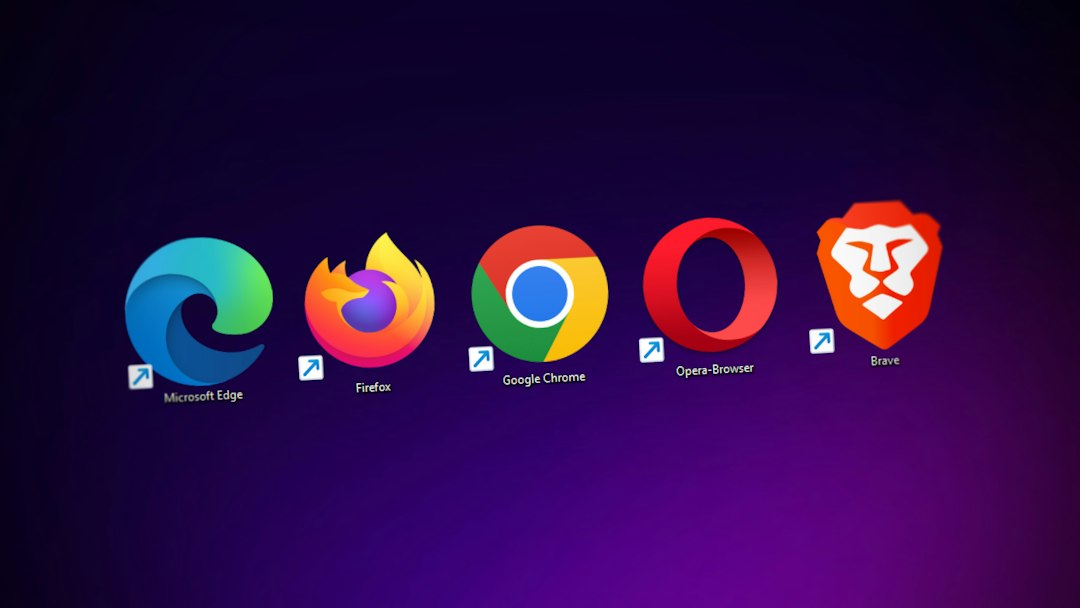
- Local privacy: Both clear private window history and cookies after closing.
- Tracker blocking: Brave is usually stricter out of the box. Firefox is strong, but less forceful by default.
- Tor option: Brave has Private Window with Tor. Firefox does not include this in standard Private Browsing.
- Site compatibility: Firefox tends to break fewer sites. Brave may block more, which can cause issues.
- Customization: Firefox gives deeper settings and extension choice. Brave keeps more privacy tools built in.
What neither browser can fully protect
Private browsing does not protect you from every form of tracking. Browser fingerprinting is still tough. Account logins also ruin privacy fast. If you sign into Google, Amazon, Facebook, or another account, that company can connect activity to you.
Downloads also remain on your device. Bookmarks stay too. If you download a bank statement in a private window, it does not vanish when the window closes. It sits in your downloads folder like any other file.
If your privacy concern is bigger than browser history, think wider. Hide sensitive apps on your phone, use strong passwords, and avoid throwaway email services for serious accounts. For related reading, see this guide on how to hide apps on iPhone and this breakdown of Gmailnator privacy risks.
Which one should you use?
Pick Firefox Private Browsing if you want a balanced private mode that is easy to trust and simple to use. It is great for daily privacy, shared devices, and sessions you do not want saved.
Pick Brave Private Windows if you want heavier blocking from the start. It is better for tracker-heavy sites and people who do not want to install privacy extensions. Use Brave’s Tor private window only when you need extra IP privacy, and remember that it may be slower.
If you are comparing privacy browsers more broadly, this Vivaldi, Waterfox, and Floorp privacy comparison is a useful next read.
Bottom line: Firefox is the smoother private browsing choice. Brave is the tougher blocker. Neither one is a secret tunnel. Use the right tool for the risk, close the private window when done, and do not confuse “not saved on this device” with “no one can see it.”