

If your website feels sluggish on Bluehost, you are not alone. Bluehost is popular because it is beginner friendly and affordable, but speed can vary depending on your hosting plan, website setup, traffic levels, plugins, themes, and optimization choices. The good news is that a slow Bluehost site is often fixable once you identify the real bottleneck.
TLDR: Bluehost sites are usually slow because of shared server limitations, heavy WordPress themes, too many plugins, unoptimized images, lack of caching, or overloaded databases. Start by testing your site speed, then enable caching, compress images, remove unnecessary plugins, and use a CDN. If performance still suffers, upgrading from shared hosting to VPS, cloud, or managed WordPress hosting may be the most effective solution.
Why Bluehost Can Feel Slow
Bluehost is not automatically slow, but many users begin on low-cost shared hosting plans. On shared hosting, your website uses the same server resources as many other websites. That means CPU, memory, disk activity, and bandwidth are divided among multiple accounts. If another site on the server gets a traffic spike or runs resource-heavy scripts, your site may become slower too.
This is one of the most common reasons people ask, “Why is Bluehost slow?” The answer is often not a single problem, but a combination of hosting limits and website-level inefficiencies.
1. Shared Hosting Resource Limits
Bluehost’s basic shared hosting plans are designed for small websites, blogs, portfolios, and starter business pages. They are not built for high-traffic stores, large membership platforms, or complex WordPress sites with many dynamic features.
When your site exceeds available resources, visitors may experience:
- Slow page loading
- Delayed admin dashboard response
- Timeout errors
- Slow checkout or form submissions
- Occasional downtime during traffic spikes
How to fix it: Check your Bluehost usage metrics if available, then compare your current plan with your site’s needs. If your website receives steady traffic or runs WooCommerce, course software, forums, or many plugins, consider upgrading to a VPS, cloud, or managed WordPress plan. More dedicated resources can dramatically improve stability.
2. Too Many WordPress Plugins
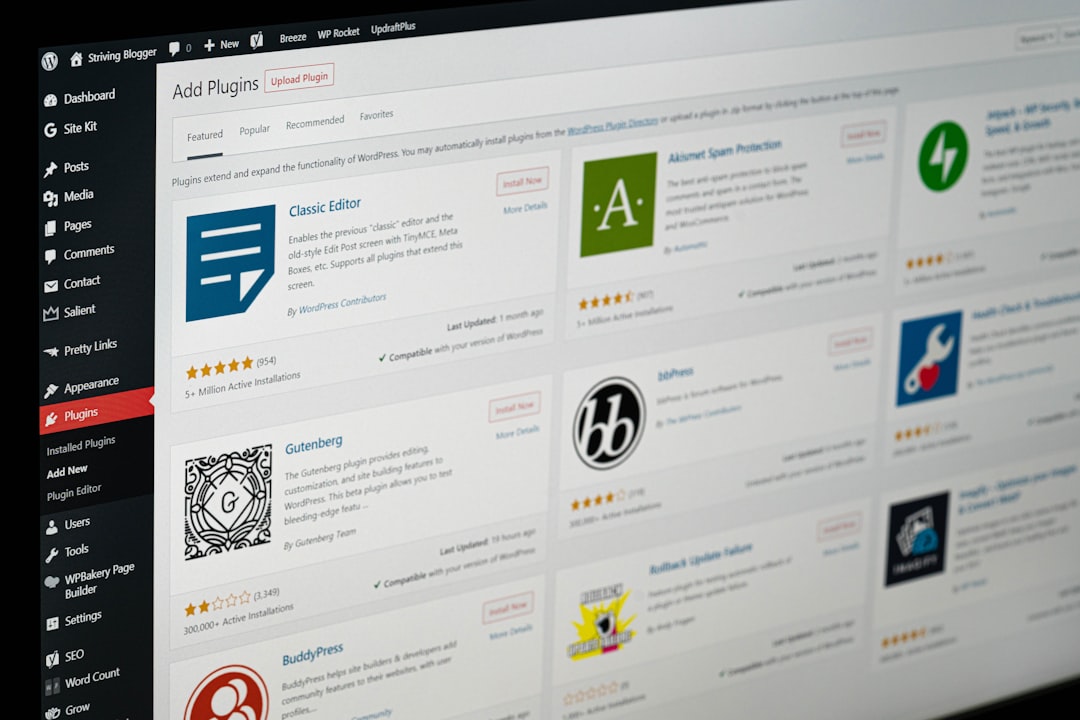
Plugins are one of WordPress’s biggest strengths, but they can also be a major source of slow performance. Each plugin may add scripts, database queries, stylesheets, tracking code, or background tasks. Some plugins load assets on every page even when they are only needed in one area.
Common plugin types that can slow a site include:
- Page builders with excessive widgets
- Security plugins performing frequent scans
- Backup plugins running during peak hours
- Analytics and tracking plugins
- Related posts, sliders, and social sharing tools
How to fix it: Audit your plugins. Deactivate anything you do not actively use. Replace multiple overlapping plugins with one lightweight tool when possible. Test your site speed before and after disabling plugins to identify the worst offenders. A lean WordPress setup is almost always faster.
3. Heavy Themes and Page Builders
A beautiful website can still be poorly optimized. Some themes include large CSS files, JavaScript libraries, animation effects, custom fonts, sliders, and unused layouts. Page builders can also increase the number of HTML elements and scripts loaded on each page.
This does not mean you must use a plain website. It means your design should be intentional. A homepage with multiple sliders, background videos, animated sections, embedded feeds, and large hero images may look impressive but perform poorly, especially on shared hosting.
How to fix it: Choose a lightweight theme, disable features you do not need, and avoid excessive animations. If you use a page builder, keep layouts simple and remove unused modules. Test mobile performance as well, because many visitors will experience your site on slower networks.
4. Unoptimized Images
Images are often the largest files on a webpage. Uploading full-size photos directly from a camera or stock photo site can add several megabytes to a single page. Even if Bluehost is functioning normally, oversized images can make your website feel painfully slow.
How to fix it: Resize images before uploading them. Use modern formats such as WebP where possible. Compress images with a reliable optimization plugin or external tool. Also use lazy loading so images below the fold load only when visitors scroll down.
A good rule of thumb: do not upload a 4000-pixel-wide image if it will only display at 900 pixels wide. Smaller, properly compressed images improve speed without noticeably reducing quality.
5. No Caching or Poor Cache Configuration
WordPress dynamically generates pages by running PHP and querying the database. Without caching, the server may rebuild pages for every visitor. On shared hosting, this can quickly consume resources and slow everything down.
Caching creates saved versions of pages, reducing the amount of work the server must do. Bluehost often provides caching features, and many WordPress users also install caching plugins.
How to fix it: Enable caching through Bluehost or use a trusted caching plugin. Make sure page caching, browser caching, and file optimization are configured correctly. However, avoid running multiple caching systems at the same time without understanding how they interact, because conflicts can cause layout issues or stale content.
6. No Content Delivery Network
If your server is located in one region and your visitors are spread across the world, distance affects speed. A visitor far from the server may experience longer loading times because files must travel farther across the network.
A Content Delivery Network, or CDN, stores copies of your static files on servers around the world. Images, CSS, JavaScript, and fonts can be delivered from a location closer to each visitor.
How to fix it: Use a CDN such as Cloudflare or another reputable provider. A CDN can improve global loading times, reduce server strain, and add security benefits. It is especially useful for blogs, business sites, and online stores with visitors from multiple regions.
7. Database Bloat
Over time, WordPress databases collect unnecessary data: post revisions, spam comments, expired transients, plugin leftovers, old logs, and unused tables. A bloated database can slow down admin actions, searches, product pages, and dynamic content.
How to fix it: Clean your database carefully using a reputable optimization plugin or manual database maintenance if you know what you are doing. Always create a full backup first. Remove spam comments, limit post revisions, clear expired transients, and delete tables left behind by old plugins.
8. External Scripts and Third-Party Tools
Sometimes Bluehost is blamed for delays caused by scripts loaded from elsewhere. Ad networks, live chat widgets, social media embeds, video players, heatmaps, tracking pixels, and external fonts can all increase loading time. If one third-party server responds slowly, your site may appear slow too.
How to fix it: Review all external scripts. Keep only what provides clear value. Load scripts asynchronously when possible, delay nonessential JavaScript, and avoid embedding too many social feeds or videos on the same page.
How to Diagnose a Slow Bluehost Site
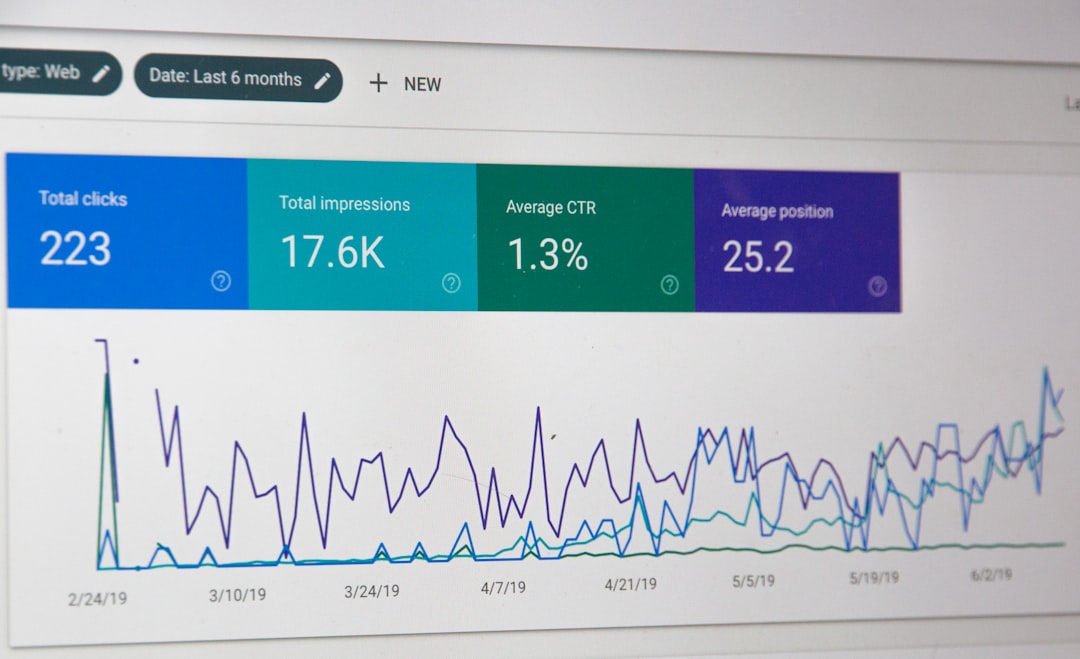
Before making random changes, run a few tests. Use tools such as Google PageSpeed Insights, GTmetrix, WebPageTest, or your browser’s developer tools. Look for patterns rather than a single score.
Pay attention to:
- Time to First Byte: Indicates server response speed.
- Largest Contentful Paint: Shows how quickly the main visible content loads.
- Total page size: Reveals whether images and scripts are too large.
- Number of requests: Shows how many files the browser must load.
- Render blocking resources: Identifies CSS or JavaScript delaying the page.
If Time to First Byte is consistently high even on a simple page with caching enabled, hosting limitations may be the issue. If page size is huge, your images, scripts, or theme are likely the cause.
Quick Fix Checklist
- Enable caching and confirm it is working.
- Compress and resize all large images.
- Remove unused plugins and themes.
- Use a lightweight WordPress theme.
- Connect your site to a CDN.
- Clean and optimize the WordPress database.
- Delay or remove unnecessary third-party scripts.
- Update PHP, WordPress, themes, and plugins.
- Upgrade hosting if your site has outgrown shared resources.
When Should You Upgrade?
If you have optimized your site and it is still slow, your hosting plan may simply be too limited. Shared hosting is a practical starting point, but growing websites need more power. Online stores, high-traffic blogs, membership sites, and business-critical websites usually benefit from better hosting infrastructure.
Consider upgrading if your site slows down during normal traffic, your admin dashboard is consistently laggy, checkout pages take too long, or performance tests show poor server response even after caching. At that point, more server resources are not a luxury; they are part of providing a reliable user experience.
Final Thoughts
Bluehost may be slow for several reasons, but the cause is usually discoverable. Start with the basics: optimize images, reduce plugin load, enable caching, use a CDN, and clean your database. Then evaluate whether your hosting plan still matches your website’s size and purpose.
A fast website is not just about better scores in speed tools. It keeps visitors engaged, improves conversions, supports search visibility, and makes your site feel more professional. With the right fixes, a slow Bluehost site can often become noticeably faster and much more reliable.