
For people who regularly move PDFs, photos, videos, spreadsheets, and work documents between a computer and a mobile device, the process can become surprisingly slow. DocsTransfer is designed to remove much of that friction by offering a simple browser-based way to send files to and from supported devices, especially when used with the Documents app by Readdle. This review looks at how it works, where it performs well, and whether it is a practical option for everyday file transfers.
TLDR: DocsTransfer is a convenient, easy-to-use file transfer tool for users who want to move files between a computer and a mobile device without cables. It works best for quick transfers over the same Wi-Fi network and is especially useful for documents, media files, and everyday folders. It is not a full cloud storage replacement, but it is highly practical for fast local sharing. For users already using the Documents app, it can feel like one of the simplest transfer methods available.
What Is DocsTransfer?
DocsTransfer is a web-based file transfer solution that lets users connect a desktop browser with a mobile device. Instead of relying on USB cables, email attachments, or third-party cloud drives, it creates a direct workflow for moving files between devices. In most cases, the process involves opening the DocsTransfer website on a computer and pairing it with the Documents app on a phone or tablet.
The service is aimed at users who want a clean and fast way to manage local files. It is especially helpful for people who store reading materials, work documents, videos, music, or project files on their mobile devices. Because the platform focuses on simplicity, it does not overwhelm users with unnecessary features.
How DocsTransfer Works
The setup process is one of the strongest parts of DocsTransfer. A user opens the DocsTransfer page in a desktop browser, then uses the Documents app on the mobile device to scan a QR code or connect through the provided instructions. Once connected, files can be uploaded from the computer to the mobile device or downloaded from the device to the computer.
The general workflow is straightforward:
- Open DocsTransfer in a computer browser.
- Launch the Documents app on the mobile device.
- Pair both devices using the on-screen connection method.
- Select files or folders for transfer.
- Wait for the transfer to complete over the local network.
This approach makes DocsTransfer suitable for users who do not want to install desktop software. Since the computer side runs through a browser, the experience feels lightweight and accessible. The mobile app handles the file organization, while the web interface provides a quick bridge between devices.
Ease of Use
Ease of use is the main reason DocsTransfer stands out. The interface is clean, the connection steps are easy to understand, and the file transfer process does not require technical knowledge. Users can drag and drop files, browse folders, and move content with minimal effort.
For students, office workers, and casual users, this can save time. Instead of sending files to themselves by email or waiting for cloud sync, they can move content directly. This is particularly useful when transferring large PDFs, video lectures, presentations, or scanned documents.
The platform also reduces clutter. Because it is not trying to be a full productivity suite, users can focus on one task: transferring files. That simplicity makes the experience feel faster and less frustrating than many multi-feature tools.
Performance and Speed
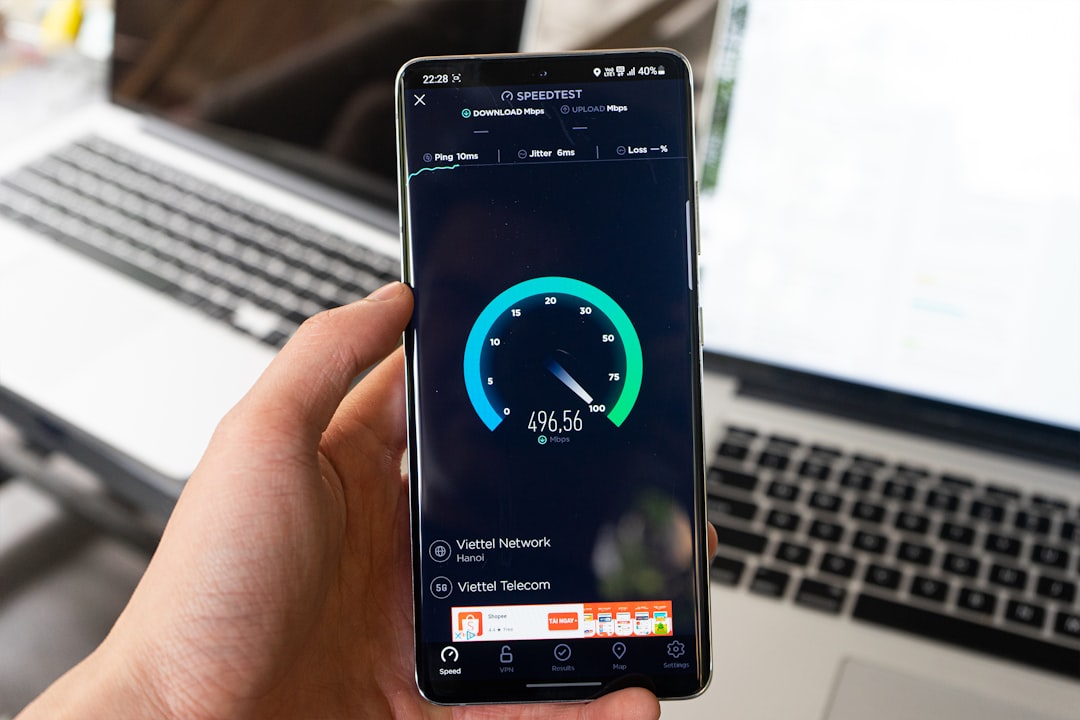
DocsTransfer generally performs well when both devices are connected to the same stable Wi-Fi network. Transfer speed depends on factors such as file size, router quality, device performance, and local network traffic. Small documents usually transfer almost instantly, while large videos or folders may take more time.
Compared with uploading files to a cloud service and then downloading them again, DocsTransfer can feel more direct. Since the transfer happens locally in many use cases, it avoids the extra step of sending data through remote storage. This can be a major advantage when internet upload speeds are slow.
However, performance may vary. If the Wi-Fi connection is weak or the devices are on different networks, the connection may fail or become unreliable. For best results, both devices should be near the router and connected to the same network.
Key Features
DocsTransfer does not try to compete with every file management tool on the market. Instead, it focuses on the essentials. Its most useful features include:
- Wireless transfers: Files can be moved without a USB cable.
- Browser-based access: The computer does not need dedicated transfer software.
- QR code pairing: Connecting devices is quick and simple.
- Two-way transfers: Users can send files to a device or download files from it.
- Folder management: Files can be organized through the connected app environment.
- Support for many file types: PDFs, images, videos, music, archives, and office documents can typically be handled.
These features make it especially useful for people who want a no-nonsense transfer tool. It is not overloaded with advanced settings, which helps keep the learning curve low.
Who Should Use DocsTransfer?
DocsTransfer is best suited for users who frequently move files between a computer and a mobile device. It can be valuable for students transferring lecture notes, professionals moving PDFs and reports, creators sending media files, and travelers saving offline documents or entertainment.
It is also a strong choice for people who dislike cable-based transfers. Modern devices do not always make wired file management simple, and DocsTransfer offers a cleaner alternative. For users who already keep files inside the Documents app, it fits naturally into their existing workflow.
It is less ideal for users who need automatic cloud backup, team collaboration, version history, or long-term file syncing across many devices. In those cases, a full cloud storage service may be more appropriate.
Security and Privacy Considerations
When dealing with file transfers, security matters. DocsTransfer’s local transfer style can be appealing because files do not need to be emailed or manually uploaded to a general cloud folder. This reduces some common risks, such as sending documents to the wrong address or leaving sensitive attachments in an inbox.
Still, users should treat any file transfer tool carefully. Devices should be connected only on trusted networks, and public Wi-Fi should be avoided for sensitive files. It is also wise to disconnect after transfers are finished and keep the mobile app updated.
For personal documents, school files, and general media, DocsTransfer provides a practical balance between convenience and control. For highly confidential business or legal files, organizations should follow their own security policies before using any transfer service.
Pros and Cons
Pros:
- Very easy to set up and use
- No USB cable required
- Works through a desktop browser
- Good for quick local transfers
- Useful for many common file types
- Clean and focused interface
Cons:
- Requires compatible app support on the mobile device
- Depends on Wi-Fi quality
- Not a complete cloud storage replacement
- May not be ideal for large-scale business file management
Final Verdict
DocsTransfer succeeds because it keeps file transfers simple. Instead of forcing users into a complicated system, it provides a direct bridge between a computer and a mobile device. The process is quick, the interface is approachable, and the lack of cables makes it convenient for everyday use.
It is not meant to replace every storage or collaboration tool, but it does not need to. Its strength lies in fast, practical transfers for people who want to move files without extra steps. For users who regularly handle documents, media, and folders on mobile devices, DocsTransfer is a reliable and user-friendly option worth considering.

FAQ
What is DocsTransfer used for?
DocsTransfer is used to transfer files between a computer and a supported mobile device, usually through a web browser and the Documents app.
Does DocsTransfer require a USB cable?
No. DocsTransfer is designed for wireless file transfers, making it useful for users who prefer not to connect devices with a cable.
Is DocsTransfer easy for beginners?
Yes. Its connection process and interface are simple, making it suitable for beginners as well as experienced users.
Can DocsTransfer replace cloud storage?
Not completely. It is best for direct file transfers, while cloud storage is better for backup, syncing, sharing links, and collaboration.
What affects DocsTransfer speed?
Transfer speed depends on Wi-Fi strength, file size, router performance, and the devices being used.
Is DocsTransfer good for large files?
It can handle large files, but performance depends on the stability and speed of the local network.