

High ping can make even a stable internet connection feel unreliable, especially in online gaming, video calls, remote work, and real-time collaboration tools. Ping measures how long it takes data to travel from your device to a server and back, usually in milliseconds. A lower ping means faster response times, while a higher ping causes delays, lag, rubber banding, missed inputs, and poor audio or video synchronization.
TLDR: To lower your ping, use a wired Ethernet connection, connect to the closest available server, reduce background internet usage, and restart your router regularly. Keep your network hardware updated, avoid congested Wi-Fi channels, and make sure no other devices are consuming large amounts of bandwidth. If the problem continues, your internet provider, routing path, or outdated equipment may be the cause.
Understand What Ping Actually Measures
Ping is not the same thing as download speed. You can have a very fast internet plan and still experience high ping if your connection has poor routing, interference, congestion, or unstable hardware. Download speed affects how quickly large files load, while ping affects how quickly your actions register online.
For competitive gaming, a ping below 30 ms is excellent, 30–60 ms is generally good, and 60–100 ms is usable but may feel delayed. Anything above 100 ms can become noticeable, especially in fast-paced games. For video calls and remote work, slightly higher ping may still be acceptable, but spikes and instability can cause interruptions.

Use Ethernet Instead of Wi-Fi
The most reliable way to lower ping is to connect your device directly to your router with an Ethernet cable. Wi-Fi is convenient, but it is more vulnerable to interference, distance, walls, competing devices, and signal fluctuations. Even when Wi-Fi speed looks good, latency can still be unstable.
If you are gaming, streaming live, or joining important video meetings, Ethernet should be your first choice. A basic Cat 5e or Cat 6 cable is usually enough for home use. Once connected, disable Wi-Fi on the device if necessary to ensure it is actually using the wired connection.
Choose the Closest Server
Physical distance matters. The farther your data has to travel, the higher your ping is likely to be. Most online games, VPNs, and cloud services allow you to select a server region. Choose the region closest to your actual location, not simply the one that appears most popular.
For example, if you live in Germany, connecting to a server in Frankfurt or Amsterdam will usually provide better latency than connecting to New York or Singapore. In online games, avoid joining friends on distant regional servers unless necessary, because the distance alone can add significant delay.
Close Background Apps and Downloads
Applications running in the background can quietly increase ping. Cloud backups, game launchers, operating system updates, streaming apps, and file-sharing services may use bandwidth without drawing attention. This can create congestion on your local network and cause latency spikes.
Before playing a game or joining a real-time call, check for:
- Active downloads from game stores, browsers, or update tools
- Cloud syncing from services such as file backup or photo upload apps
- Streaming video on other tabs, TVs, or mobile devices
- Large uploads, which often affect ping more severely than downloads
- Automatic updates from the operating system or installed software
If your router supports it, use Quality of Service, often called QoS, to prioritize gaming, video calls, or work devices over less urgent traffic.
Restart Your Router and Modem
Restarting your router may sound basic, but it often solves temporary network problems. Routers can accumulate errors, memory issues, or unstable connections over time. A clean restart may improve both ping and general stability.
Turn off your router and modem, wait at least 30 seconds, then turn them back on. Allow a few minutes for the connection to fully restore. If your ping improves temporarily but becomes bad again after several days, your router may be overloaded, outdated, or poorly configured.
Improve Your Wi-Fi Setup
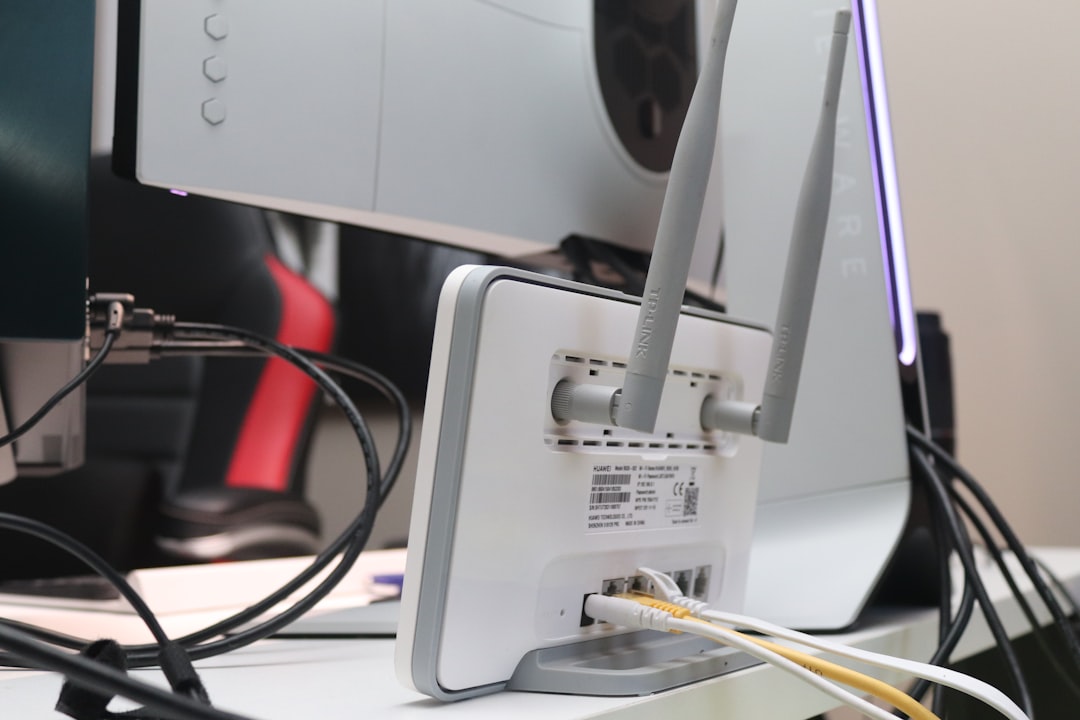
If Ethernet is not possible, improve your wireless connection. Place your router in a central, elevated location away from thick walls, metal objects, microwaves, cordless phones, and large electronics. Avoid placing it inside cabinets or behind furniture.
Use the 5 GHz band when you are close to the router, as it usually offers lower latency and less interference. Use 2.4 GHz only when you need longer range, because it is more crowded and often slower. If your router supports Wi-Fi 6 or newer, compatible devices may benefit from better performance on busy networks.
You can also change your Wi-Fi channel in the router settings. In apartments or dense neighborhoods, many nearby routers may compete on the same channels. A Wi-Fi analyzer app can help identify less congested channels.
Update Firmware, Drivers, and Devices
Outdated software can cause latency issues. Router firmware updates may improve stability, security, and traffic handling. Network adapter drivers on your computer can also affect connection quality.
Check the following regularly:
- Router firmware through the router administration page
- Network adapter drivers on your computer
- Console system updates if you play on PlayStation, Xbox, or Nintendo Switch
- Game updates, especially for online multiplayer titles
Do not install random “ping booster” software from unknown sources. Many of these tools provide little benefit and may introduce privacy or security risks.
Limit the Number of Connected Devices
Every device on your network can affect performance, especially if your router is older or your internet plan has limited upload capacity. Phones, smart TVs, tablets, cameras, smart speakers, and computers may all communicate with the internet in the background.
If you notice high ping at certain times of day, check whether someone is streaming 4K video, uploading files, downloading games, or using video conferencing. Upload congestion is a common cause of lag. Even a single large upload can make gaming or calling feel unstable.
Be Careful With VPNs
A VPN can sometimes improve routing, but it more often increases ping because it sends your traffic through an additional server. If you are using a VPN and experiencing lag, disconnect it and test again.
There are exceptions. If your internet provider routes traffic inefficiently, a reputable VPN server closer to the game or service server may reduce ping. However, this is not guaranteed. Always test with and without the VPN rather than assuming it helps.
Test Your Connection Properly
To understand the problem, test more than just speed. Use a reliable speed test that shows ping, jitter, and packet loss. Jitter means ping is fluctuating, while packet loss means data is failing to arrive. Both can feel worse than a slightly higher but stable ping.
Run tests at different times of day. If your ping is good in the morning but poor in the evening, your local network or internet provider may be congested during peak hours. Also test on both Wi-Fi and Ethernet. If Ethernet is stable but Wi-Fi is not, the issue is likely inside your home network.
Contact Your Internet Provider When Necessary
If you have tried the main fixes and your ping remains high, contact your internet service provider. Ask them to check signal quality, line errors, modem status, and routing. If you use cable internet, neighborhood congestion may affect evening performance. If you use DSL or fixed wireless, distance and signal quality may be limiting factors.
In some cases, upgrading your plan will not reduce ping unless the upgrade also improves routing, upload capacity, or connection technology. Fiber internet typically offers the best latency and stability, but availability depends on your location.
Final Thoughts
Lowering ping is mostly about creating a cleaner, shorter, and more stable path between your device and the server. Start with the practical fixes: use Ethernet, choose nearby servers, stop background traffic, restart your router, and optimize Wi-Fi. If those steps do not help, investigate hardware, firmware, packet loss, and your provider’s network quality. A trustworthy approach is to test each change carefully, because the real cause of high ping is not always speed—it is often instability, congestion, or distance.