
Windows Display Settings is the best first choice for rotating a screen on Windows. It is built in, free, and works well for one or two monitors. Microsoft supports changing screen orientation through Windows display controls, including flipped and vertical modes [source: Microsoft]. DisplayFusion makes more sense when a user manages several monitors, saved layouts, hotkeys, or workstation profiles.
TLDR: For a quick screen rotation, Windows Display Settings is usually enough. A user can switch a monitor from horizontal to vertical in about 15 to 30 seconds, then keep the change. DisplayFusion is better for a desk with 3 monitors, a docked laptop, or repeated layout changes, where saving profiles can cut several clicks each day. For example, a coder using one vertical 27 inch side monitor may prefer Windows, while a trader with 4 displays may save time with DisplayFusion.
Windows Display Settings: simple and already there
Windows has a built in control for changing screen direction. It works in Windows 10 and Windows 11. No extra app is needed. That alone makes it the safest option for most home users, students, and office workers.
To rotate a screen through Windows Display Settings, the user can:
- Right click the desktop.
- Select Display settings.
- Pick the correct monitor if more than one screen is connected.
- Find Display orientation.
- Choose a horizontal, vertical, or flipped option.
- Click Keep changes if the view looks right.
This method is clean. It also reduces risk. Since it uses Windows controls, there is less chance of a conflict with graphics software, dock drivers, or office security rules.
The weak spot is repetition. It gets annoying when a user undocks a laptop, plugs it back in, and then spends another 20 seconds fixing the same monitor order or screen angle again. Windows can remember many setups, but not every desk behaves nicely. Cheap docks and older graphics drivers can make the process feel clumsy.
DisplayFusion: better for repeat setups
DisplayFusion is a third party Windows tool from Binary Fortress. It is aimed at users with more complex monitor setups. It can manage monitor profiles, shortcuts, monitor splitting, wallpaper control, window placement, and taskbar behavior.
For screen rotation, the main appeal is not just changing angle. It is saving the setup. A user can create a monitor profile for work, another for gaming, and another for presentations. Then the whole layout can be restored with fewer clicks.
That matters in real use. A developer may keep a vertical monitor for code, a main monitor for the browser, and a laptop screen for chat. A presenter may switch between local monitors and shared displays. In that case, tools such as screen mirroring applications for presentations may also sit beside DisplayFusion in the same workflow.
DisplayFusion can also assign hotkeys to monitor actions. That is useful when a user changes layouts often. Instead of opening Settings each time, the user can press a shortcut or apply a saved profile.
Windows vs DisplayFusion: which one wins?
Windows Display Settings wins for basic rotation. It is free, fast, and easy to explain. It works well for one monitor turned sideways for reading, coding, spreadsheets, or document review.
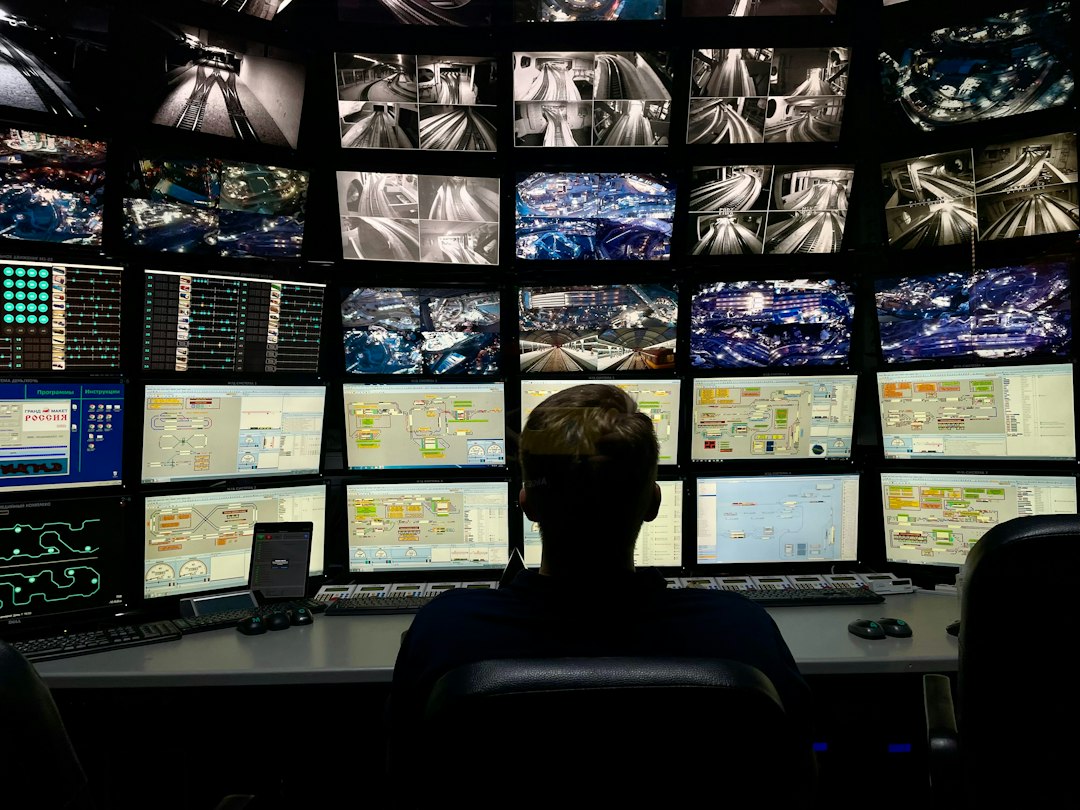
DisplayFusion wins for repeated layout changes. It is stronger when a desk has several monitors, mixed screen sizes, vertical displays, and docking stations. It also helps when the same person switches between office work, streaming, meetings, and remote sessions.
Here is the practical split:
- Use Windows Display Settings for a one time rotation.
- Use Windows Display Settings when company policy blocks third party tools.
- Use DisplayFusion when monitor profiles need to be saved.
- Use DisplayFusion when hotkeys and presets save daily time.
- Use DisplayFusion when Windows keeps mixing up displays after sleep or docking.
Common problems when rotating a Windows screen
Sometimes the screen rotates, but the mouse feels wrong. That usually means the monitor order is not set correctly. The user should return to Display Settings and drag the monitor boxes until they match the physical desk layout.
Another common issue is a missing orientation menu. This can happen because of graphics driver limits, remote desktop sessions, display adapters, or locked company settings. Updating the graphics driver may help. So can testing a direct cable instead of a dock.
Text sharpness can also look odd after rotation. In that case, the user may need to check scaling, resolution, and ClearType. A vertical monitor often works best at its native resolution.
Best choice for most users
For most people, the answer is simple. Windows Display Settings should be tried first. It costs nothing and solves the main need.
DisplayFusion is worth considering when screen rotation is part of a bigger monitor routine. If a user only rotates one screen twice a year, it may be overkill. If that same user changes layouts every morning, the extra control can feel worth it very quickly.
FAQ
Can Windows rotate a screen without extra software?
Yes. Windows Display Settings can rotate supported displays without installing another app.
Why is the screen sideways after pressing something?
Some graphics drivers or keyboard tools support rotation shortcuts. The user can fix it in Display Settings by choosing the normal horizontal option.
Is DisplayFusion required for vertical monitors?
No. A vertical monitor can be set up with Windows alone. DisplayFusion is mainly helpful for profiles, hotkeys, and multi monitor control.
Does screen rotation affect performance?
Usually, no. Most modern PCs handle rotated screens without a noticeable drop. Very old graphics hardware may struggle with high resolution displays.
Which option is better for an office with several monitors?
DisplayFusion is often better for a complex office desk. Windows is better for simple, one time changes.