
SOS on an iPhone means the device cannot use normal cellular service, but it may still be able to call emergency services. Apple says Emergency SOS can contact local emergency services and, in many cases, alert your emergency contacts with your location [source: Apple].
TLDR: If you see SOS or SOS only in the status bar, your iPhone is not connected to your carrier in the usual way. You may still be able to call emergency services, such as 911 in the United States. For example, if 78% of a stadium crowd overloads one carrier tower, your phone might lose regular service but still reach another network for emergency calls. It is not always a phone failure, but you should check your signal, SIM, and carrier settings.
Image not found in postmetaWhat “SOS” Means in the iPhone Status Bar
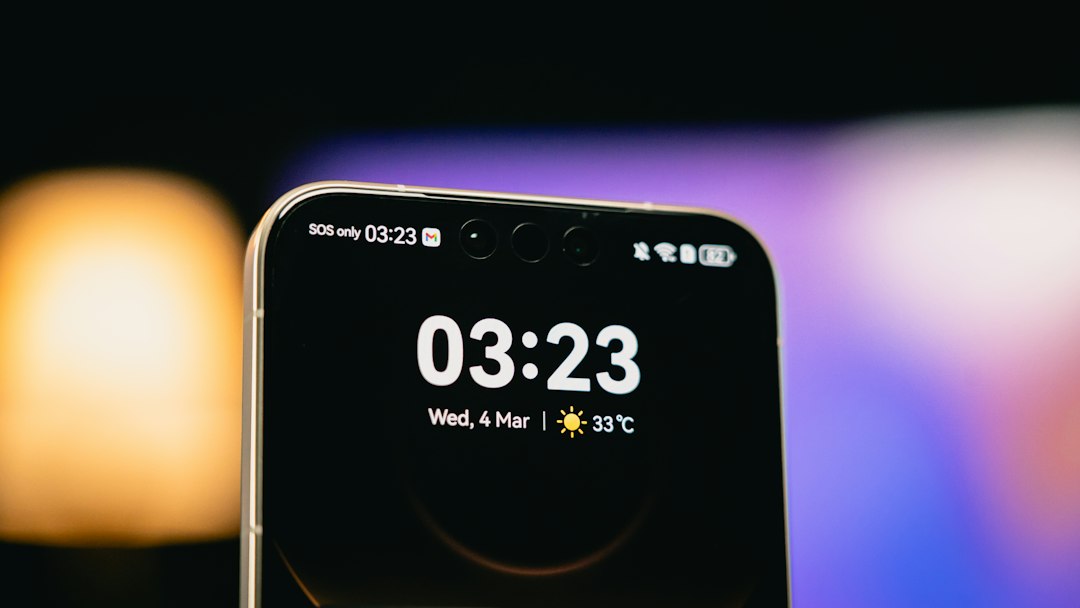
When your iPhone shows SOS or SOS only, it is telling you one thing first: regular mobile service is not available. Your phone is not properly connected to your carrier’s network for calls, texts, or mobile data.
But emergency calling may still work. That is the key point. Your iPhone may be able to connect through another carrier’s tower only for emergency services. This is why you might see SOS instead of “No Service.”
The catch is that the label can look scary even when nothing is wrong with the phone itself. It may happen in a basement, rural area, crowded venue, tunnel, or during a carrier outage. Sometimes it clears in seconds. Other times, it sticks around and becomes a real problem.
SOS in the Status Bar vs Emergency SOS
These two terms sound almost the same, but they are not identical.
- SOS in the status bar: Your iPhone has limited network access. Normal service is unavailable, but emergency calls may be possible.
- Emergency SOS: A safety feature that lets you quickly call emergency services using button shortcuts.
- Emergency SOS via satellite: On supported iPhone models, this can contact emergency services when both cellular and Wi Fi are unavailable.
So, if your screen says SOS only, your phone is reporting a network issue. If you press the emergency shortcut, you are using the actual Emergency SOS feature.
Why Your iPhone Says SOS
There are several common reasons your iPhone may show SOS.
- Poor signal: You are outside your carrier’s coverage area.
- Carrier outage: Your provider may be having service problems.
- SIM or eSIM issue: Your iPhone may not be reading your mobile plan correctly.
- Account problem: Billing, activation, or carrier limits may block service.
- Software glitch: iOS may be stuck showing the wrong network state.
- Roaming limits: You may be in another country or region without the right roaming setup.
Honestly, it feels like the most annoying version of this problem is when everything worked five minutes ago, then the phone suddenly decides it has no useful signal. That usually points to a tower issue, a carrier setting problem, or a temporary software hang.
What You Can Still Do When SOS Appears
If SOS appears, do not assume the iPhone is useless. You may still be able to:
- Call emergency services.
- Use Wi Fi if a trusted network is available.
- Send iMessages or make FaceTime audio calls over Wi Fi.
- Use Emergency SOS through the side buttons.
- Use satellite emergency help on supported models and regions.
Normal calls and SMS may fail. Mobile data may also stop. Apps that need the internet may work only if Wi Fi is connected.
How to Fix SOS on an iPhone
Try these steps in order. Start simple, because the simple fix often works.
- Move to a better location. Step outside, go near a window, or leave a basement or elevator.
- Turn Airplane Mode on and off. Wait about 10 seconds before turning it off again.
- Restart your iPhone. This forces the phone to search for the network again.
- Check your SIM or eSIM. For a physical SIM, remove and reinsert it. For eSIM, check your cellular plan under settings.
- Update carrier settings. Go to Settings > General > About. If an update appears, install it.
- Check for iOS updates. Go to Settings > General > Software Update.
- Reset network settings. Go to Settings > General > Transfer or Reset iPhone > Reset > Reset Network Settings.
- Contact your carrier. Ask if there is an outage, account issue, or SIM provisioning problem.
Resetting network settings will erase saved Wi Fi networks and VPN settings. It will not delete your photos, apps, or messages. Still, expect to waste time re entering Wi Fi passwords afterward. That part is irritating, but it can clear stubborn network faults.
How Emergency SOS Works
Emergency SOS is designed for fast action. On many iPhones, you can press and hold the side button and a volume button until the emergency slider appears. You can also press the side button five times quickly, depending on your settings.
After the call ends, your iPhone may send your emergency contacts a text with your location. If your location changes, they may receive updates for a limited time. This can help if you are injured, lost, or unable to explain where you are.
When SOS Is Serious
SOS is serious if you need help right away, cannot place normal calls, or are in an unsafe place. In that case, use Emergency SOS immediately. Do not spend minutes testing settings if there is a real emergency.
If there is no emergency, treat SOS as a service warning. Check coverage, restart the phone, and contact your carrier if it keeps coming back. If SOS appears in several locations for hours, the issue is likely tied to your account, SIM, eSIM, or carrier network.
Bottom line: SOS on an iPhone does not always mean disaster. It means your normal cellular connection is broken or limited, while emergency calling may still be available. Take it seriously, but fix it step by step.